Office to PDF SDK — How to Convert Office Documents to PDF

Table of contents

Converting Office documents to PDF is essential for ensuring compatibility, preserving formatting, and securing files for sharing.
The GdPicture(opens in a new tab) Office to PDF SDK gives you the conversion that relies entirely on its own technology, without the need for third-party tools such as LibreOffice.
In this guide, we’ll show how to set up your development environment and perform these conversions efficiently.
Office to PDF SDK -- Getting Started
To start working with GdPicture.NET SDK, you need to set up your development environment.
- Download and install Visual Studio:
Go to Visual Studio(opens in a new tab)
Download the Community, Professional, or Enterprise edition.
During installation, select the .NET desktop development workload. 2. Install GdPicture.NET SDK:
Download the SDK from the official website(opens in a new tab)
Follow the installation instructions to add the SDK to your project. 3. Create a New C# Project:
Open Visual Studio.
Select Create a new project.
Choose Console App (.NET).
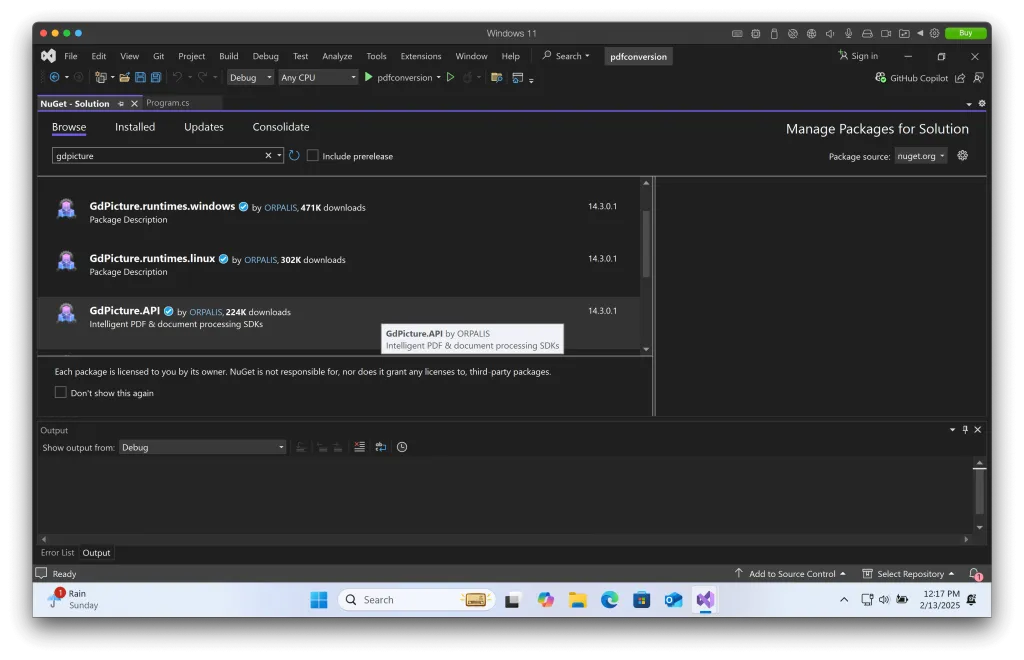
Click Next, enter a project name, and click Create. 4. Add the GdPicture.NET SDK NuGet Package:
Open Tools > NuGet Package Manager > Manage NuGet Packages for Solution.
If your application runs on .NET 6.0 or newer, select GdPicture.API, and then click Install.
If your application runs on .NET 4.6.2 or .NET Core 3.1, select GdPicture, and then click Install.
Adding a Demo Document
Before running the code, add a sample document to the** C:\temp** folder. This folder should contain the source document you want to convert.
Why Convert Office Documents to PDF?
- Universal Compatibility: PDFs can be opened on any device without requiring the original software.
- Preserved Formatting: The layout, fonts, and images remain intact.
- Security: PDFs support encryption and password protection.
- Smaller File Sizes: Optimized PDFs can reduce document sizes for easier sharing.
Converting Office Documents with GdPicture Office to PDF SDK
Using GdPicture.NET SDK, you can convert Microsoft Office documents, including Word, Excel, and PowerPoint, into high-quality PDF files with ease. This ensures that your documents retain their original formatting, structure, and security features without the need for third-party tools like LibreOffice. Below, we explore how to implement Office-to-PDF conversion efficiently in your applications.
Convert Word to PDF
Word documents (.docx, .doc) often contain rich text, tables, images, and embedded objects. Converting them to PDF ensures that formatting remains consistent across all devices and platforms, making it ideal for document sharing and archiving.
Code Example:
using GdPicture14;
// Create a new instance of the document converterGdPictureDocumentConverter gdpictureDocumentConverter = new GdPictureDocumentConverter();
// Load the source Word documentgdpictureDocumentConverter.LoadFromFile(@"C:\temp\source.docx", GdPicture14.DocumentFormat.DocumentFormatDOCX);
// Save the output as a PDF filegdpictureDocumentConverter.SaveAsPDF(@"C:\temp\output.pdf");
Step-by-Step Explanation:
- Instantiate the Document Converter: Create an instance of
GdPictureDocumentConverterto manage the document conversion. - Load the Word Document: Use
LoadFromFile()to read the.docxfile from a specified path. - Convert and Save as PDF: The
SaveAsPDF()method processes the document and outputs a PDF version.
How to Convert Excel to PDF Without Losing Formatting
Excel spreadsheets (.xlsx, .xls) contain tables, charts, and structured data that need to be preserved in the PDF format. Converting Excel files to PDF ensures that numerical and textual data remains readable and formatted correctly.
Code Example:
using GdPicture14;
// Initialize the document converterGdPictureDocumentConverter gdpictureDocumentConverter = new GdPictureDocumentConverter();
// Load the source Excel documentgdpictureDocumentConverter.LoadFromFile(@"C:\temp\source.xlsx", GdPicture14.DocumentFormat.DocumentFormatXLSX);
// Save the output as a PDFgdpictureDocumentConverter.SaveAsPDF(@"C:\temp\output.pdf");
Benefits of Excel-to-PDF Conversion:
- Data Integrity: Preserves formulas and cell layouts.
- Consistency: Ensures that data structure remains unchanged.
- Shareability: Makes it easier to distribute financial reports, invoices, and analytics.
Convert PowerPoint to PDF
PowerPoint presentations (.pptx, .ppt) consist of slides with text, images, animations, and multimedia elements. Converting PowerPoint files to PDF provides a static and easily shareable version of the presentation.
Code Example:
using GdPicture14;
// Initialize the document converterGdPictureDocumentConverter gdpictureDocumentConverter = new GdPictureDocumentConverter();
// Load the source PowerPoint documentgdpictureDocumentConverter.LoadFromFile(@"C:\temp\source.pptx", GdPicture14.DocumentFormat.DocumentFormatPPTX);
// Save the output as a PDFgdpictureDocumentConverter.SaveAsPDF(@"C:\temp\output.pdf");
Why Convert PowerPoint to PDF?
- No Need for PowerPoint Software: PDFs can be opened on any device.
- Preserves Slide Formatting: Maintains fonts, colors, and layout.
- Prevents Unwanted Edits: Ensures content integrity when sharing slides.
Optional Configuration Properties
The GdPictureDocumentConverter allows you to fine-tune the conversion process using various properties. Below are some useful configuration options:
PageRange
Specifies which pages should be included in the PDF conversion.
gdpictureDocumentConverter.PageRange = "1,5,9-12"; // Convert only specified pagesTrackOfficeDocumentRevisions
Determines whether tracked changes in Word documents are included in the final PDF.
gdpictureDocumentConverter.TrackOfficeDocumentRevisions = true;RenderSheetHeadersAndFooters (Excel)
Controls whether headers and footers appear in the converted PDF.
gdpictureDocumentConverter.RenderSheetHeadersAndFooters = false; // Exclude headers/footersSplitExcelSheetsIntoPages (Excel)
Specifies whether each worksheet should be a separate page in the output PDF.
gdpictureDocumentConverter.SplitExcelSheetsIntoPages = true;Example with Custom Configuration:
using GdPicture14;
// Create a document converter instanceGdPictureDocumentConverter gdpictureDocumentConverter = new GdPictureDocumentConverter();
// Load the Word documentgdpictureDocumentConverter.LoadFromFile(@"C:\temp\source.docx", GdPicture14.DocumentFormat.DocumentFormatDOCX);
// Configure conversion optionsgdpictureDocumentConverter.PageRange = "1,3-5"; // Convert selected pages only
gdpictureDocumentConverter.TrackOfficeDocumentRevisions = false; // Hide tracked changes
// Save the document as a PDFgdpictureDocumentConverter.SaveAsPDF(@"C:\temp\output.pdf");
Running the Project
- Copy and paste one of the code examples below into
Program.cs. - Save the file.
- Click Start (or press
F5) to run the program.
Conclusion
Converting Office documents to PDF using GdPicture.NET SDK ensures consistency, security, and easy sharing. With its built-in technology, you can automate the conversion of Word, Excel, and PowerPoint files without relying on external tools. Start integrating these conversions into your applications today!
How to Get Started
Integrating GdPicture into your applications is quick and easy. For a customized evaluation and demo, please contact our team of experts(opens in a new tab), and we will guide you properly for your use-case and requirements.
Alternatively, you can also download it for free.(opens in a new tab)