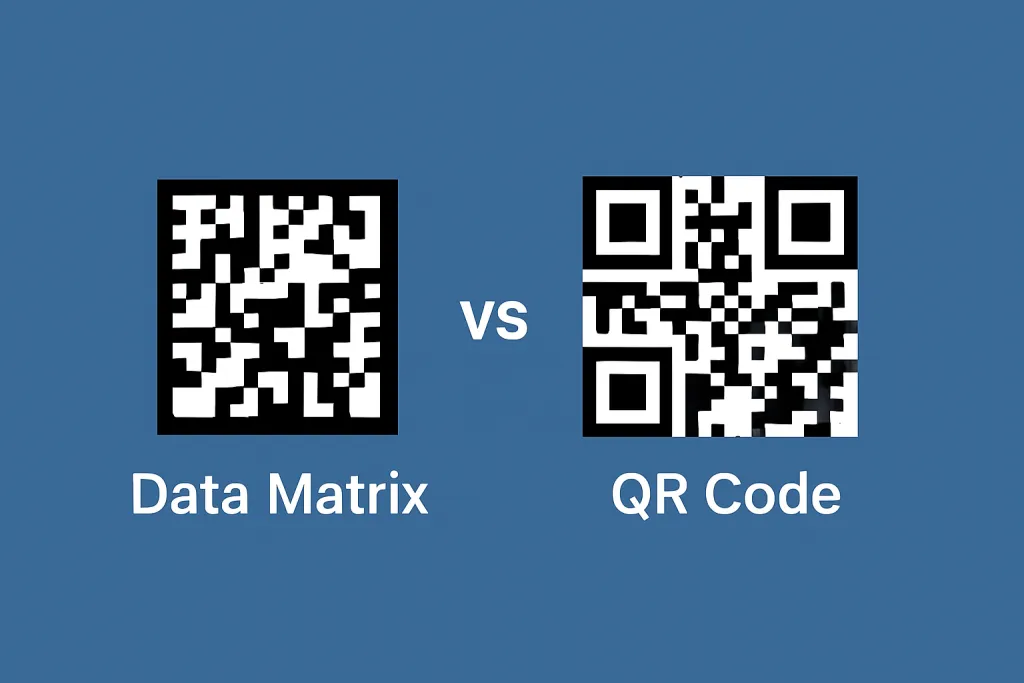
Unlocking the Power of 2D Data Matrix Barcode Scanners with GdPicture .NET SDK

Table of contents

In the fast-paced world of digital data capture, businesses and developers rely on efficient barcode scanning solutions to streamline operations. Among the most versatile barcode types is the 2D Data Matrix barcode(opens in a new tab), widely used in manufacturing, healthcare, retail, and logistics. If you’re looking for a robust, accurate, and high-performance barcode scanning solution for .NET applications, the GdPicture .NET SDK is an excellent choice.
What is a 2D Data Matrix Barcode?
A Data Matrix barcode is a two-dimensional (2D) code that can store large amounts of data in a compact space. It is commonly used in industries requiring traceability, serialization, and high-speed scanning. Unlike traditional 1D barcodes, Data Matrix codes can encode alphanumeric and special characters, making them a preferred choice for product labeling, medical devices, and electronic components.
Why Use GdPicture .NET SDK for Data Matrix Barcode Scanning?
The GdPicture .NET SDK is a powerful barcode reader and scanner library that enables developers to integrate fast and accurate barcode scanning capabilities into their .NET applications.
Key Features of GdPicture .NET SDK for Data Matrix Scanning
- Supports Multiple Barcode Types – In addition to Data Matrix, the SDK can read other 2D barcode types, including QR Code, PDF417, Aztec Code, and MaxiCode.(opens in a new tab)
- High-Speed Scanning – The library is optimized for performance, ensuring rapid barcode detection across various file formats.
- Multiple Barcode Detection – The SDK can scan and extract multiple barcodes from a single image or document.
- Accurate and Reliable – With advanced image processing algorithms, the SDK ensures precise barcode recognition even in challenging conditions such as low resolution or poor contrast.
Prerequisites
Before implementing Data Matrix barcode scanning, ensure you have the following:
- Visual Studio (Community, Professional, or Enterprise) installed.
Download it from the Visual Studio official website(opens in a new tab).
During installation, select the .NET desktop development workload to enable .NET tools. 2. .NET Framework(opens in a new tab) installed
You can use .NET 6.0 or later for best compatibility.
Step-by-Step Guide for Scanning Data Matrix Barcodes Using GdPicture
1. Install the GdPicture.NET SDK
- Visit the GdPicture.NET official website(opens in a new tab) and download the SDK version compatible with your .NET framework.
- Follow the installation instructions to integrate the SDK into your project.
2. Set Up a New C# Project
- Open Visual Studio and select "Create a new project."
- Choose the "Console App (.NET)" template.
- Enter a project name and click "Create" to generate the project structure.
3. Add the GdPicture.NET NuGet Package
- Go to Tools > NuGet Package Manager > Manage NuGet Packages for Solution.
- Open the Browse tab and search for the correct package based on your target framework:
For .NET 6.0 or newer, install GdPicture.API.
For .NET 4.6.2 or .NET Core 3.1, install GdPicture.
- Click "Install" to add the package to your project.
4. Register the License(For Evaluation)
In GdPicture14, you don’t need a license key for evaluation purposes. However, you need to register the SDK to run in evaluation mode.
// Register without a license key for evaluation modeLicenseManager licenseManager = new LicenseManager();licenseManager.RegisterKEY("");5. Create a GdPictureImaging Object
This object handles image processing.
using (GdPictureImaging gdpictureImaging = new GdPictureImaging())6. Load the Image
Pass the image file path to CreateGdPictureImageFromFile.
int imageID = gdpictureImaging.CreateGdPictureImageFromFile(@"C:\temp\data-matrix-barcode.jpg");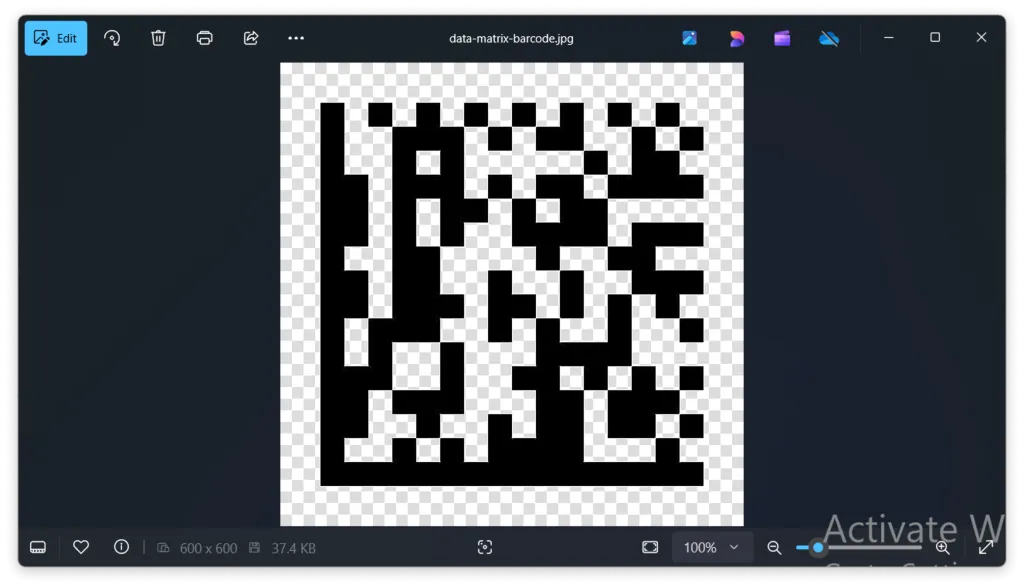
💡 Troubleshooting:
- If
imageID == 0, the image failed to load. - Check that the file path is correct and the file is not corrupt.
if (imageID == 0) { Console.WriteLine("Failed to load image. Check file path."); return; }7. Scan for Data Matrix Barcodes
Use BarcodeDataMatrixReaderDoScan to detect barcodes in the image.
Console.WriteLine("Scanning for Data Matrix barcodes..."); BarcodeDataMatrixReaderScanMode mode = BarcodeDataMatrixReaderScanMode.BestQuality; int expectedBarcodes = 0; // 0 means scan for all barcodes GdPictureStatus status = gdpictureImaging.BarcodeDataMatrixReaderDoScan(imageID, mode, expectedBarcodes);💡 Troubleshooting:
- If
status != GdPictureStatus.OK, the scan failed. - Possible causes:
Low image quality
Blurred or distorted barcode
Wrong scan mode
if (status != GdPictureStatus.OK) { Console.WriteLine($"Scan failed with status: {status}"); return; }8. Retrieve and Display Barcode Data
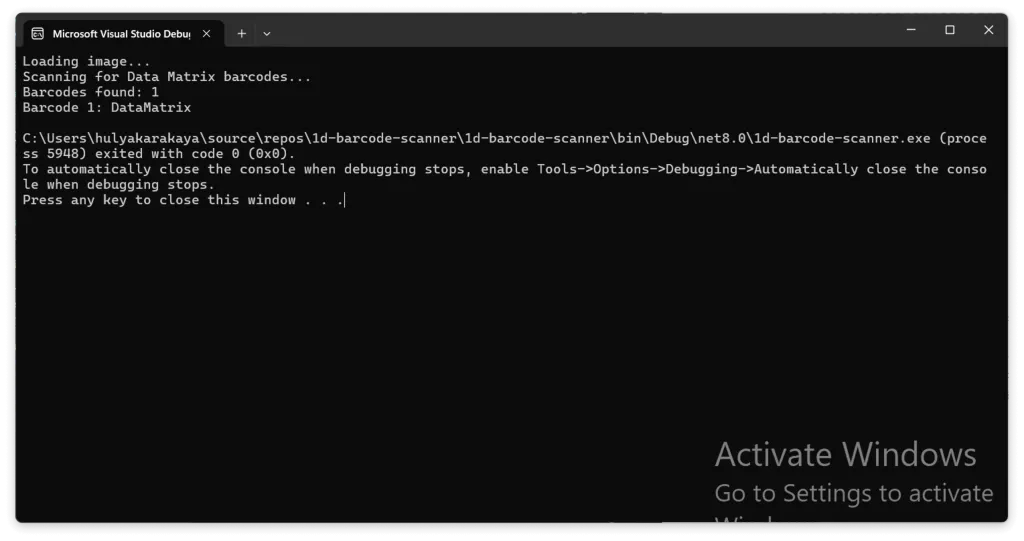
Get the number of detected barcodes and loop through them.
int barcodeCount = gdpictureImaging.BarcodeDataMatrixReaderGetBarcodeCount(); Console.WriteLine($"Barcodes found: {barcodeCount}");If barcodes are found, extract and display them:
if (barcodeCount > 0) { for (int i = 1; i <= barcodeCount; i++) { string barcodeValue = gdpictureImaging.BarcodeDataMatrixReaderGetBarcodeValue(i); Console.WriteLine($"Barcode {i}: {barcodeValue}"); } } else { Console.WriteLine("No barcodes detected. Try another image or adjust scan parameters."); }💡 Troubleshooting:
- If
barcodeCount == 0, try:
Using a higher resolution image.
Increasing contrast to make the barcode more readable.
Testing with different scan modes.
9. Release Unnecessary Resources
Clear the barcode reader and free the image memory to prevent memory leaks.
gdpictureImaging.BarcodeDataMatrixReaderClear(); gdpictureImaging.ReleaseGdPictureImage(imageID);Final Notes
- Use high-quality images for best barcode recognition.
- If scanning fails, adjust scan parameters or try different modes.
- Always release memory to avoid performance issues.
Complete Code
Here’s the full code combining all the steps:
using GdPicture14;
// Register GdPicture14 license (empty string for free mode)LicenseManager licenseManager = new LicenseManager();licenseManager.RegisterKEY("");
using (GdPictureImaging gdpictureImaging = new GdPictureImaging()){// Step 1: Load the imageConsole.WriteLine("Loading image…");int imageID = gdpictureImaging.CreateGdPictureImageFromFile(@"C:\temp\data-matrix-barcode.jpg");
if (imageID == 0){    Console.WriteLine("Failed to load image. Check file path.");    return;}
// Step 2: Scan for Data Matrix barcodesConsole.WriteLine("Scanning for Data Matrix barcodes...");BarcodeDataMatrixReaderScanMode mode = BarcodeDataMatrixReaderScanMode.BestQuality;int expectedBarcodes = 0; // 0 means scan for all barcodesGdPictureStatus status = gdpictureImaging.BarcodeDataMatrixReaderDoScan(imageID, mode, expectedBarcodes);
if (status != GdPictureStatus.OK){    Console.WriteLine($"Scan failed with status: {status}");    return;}
// Step 3: Retrieve barcode countint barcodeCount = gdpictureImaging.BarcodeDataMatrixReaderGetBarcodeCount();Console.WriteLine($"Barcodes found: {barcodeCount}");
// Step 4: Display barcode valuesif (barcodeCount > 0){    for (int i = 1; i <= barcodeCount; i++)    {        string barcodeValue = gdpictureImaging.BarcodeDataMatrixReaderGetBarcodeValue(i);        Console.WriteLine($"Barcode {i}: {barcodeValue}");    }}else{    Console.WriteLine("No barcodes detected. Try another image or adjust scan parameters.");}
// Step 5: CleanupgdpictureImaging.BarcodeDataMatrixReaderClear();gdpictureImaging.ReleaseGdPictureImage(imageID);
}
Conclusion
The GdPicture .NET SDK is an ideal solution for developers seeking a fast, reliable, and feature-rich barcode scanning library for .NET applications. With its support for 2D Data Matrix barcodes and other barcode formats, it empowers businesses to enhance operational efficiency, improve traceability, and streamline data capture.
If you’re looking to implement Data Matrix barcode scanning in your .NET project, explore the GdPicture .NET SDK today and unlock the potential of seamless barcode recognition!