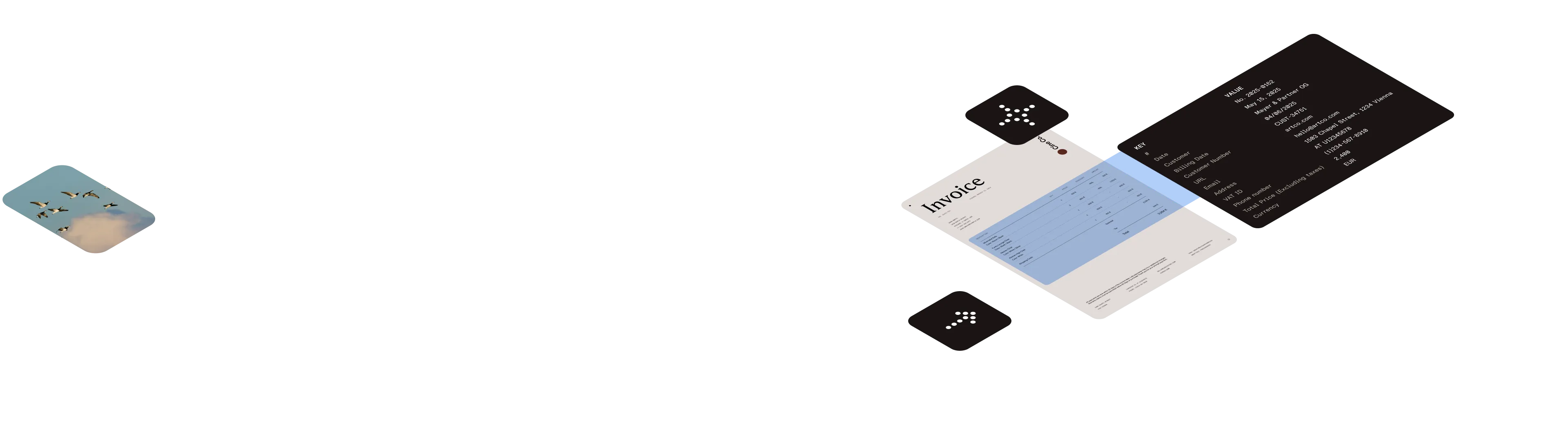
Automatically detect and extract tabular data from documents
Extract structured data from tables in any document using AI-powered detection. GdPicture.NET’s table extraction engine uses machine vision and artificial intelligence for fast, accurate results across all business documents.
Intelligent table extraction engine
Built on GdPicture’s intelligent document processing technology, the table extraction engine handles the challenges that break traditional OCR.
- Low image quality and noise
- Scanned and skewed documents
- Tables spanning page breaks
- Colored cells and backgrounds
- Characters touching cell borders
- Bordered, semi-bordered, and borderless tables
Benefits
Integrate table extraction into your workflows with just a few lines of code.
Improved productivity
Extract tables at 100 pages per second — 60× faster than traditional ML approaches. Streamline document processing and reduce manual data entry.
Scalable performance
Adaptive resource management supports high-volume processing. Works on all document types, including scanned PDFs, digital PDFs, and images.
Flexible output
Export extracted tables to Excel (XLSX), JSON, or Markdown. Deploy on-premises or embedded in your application.
HOW IT WORKS
Table extraction software in 3 steps
1
Table detection
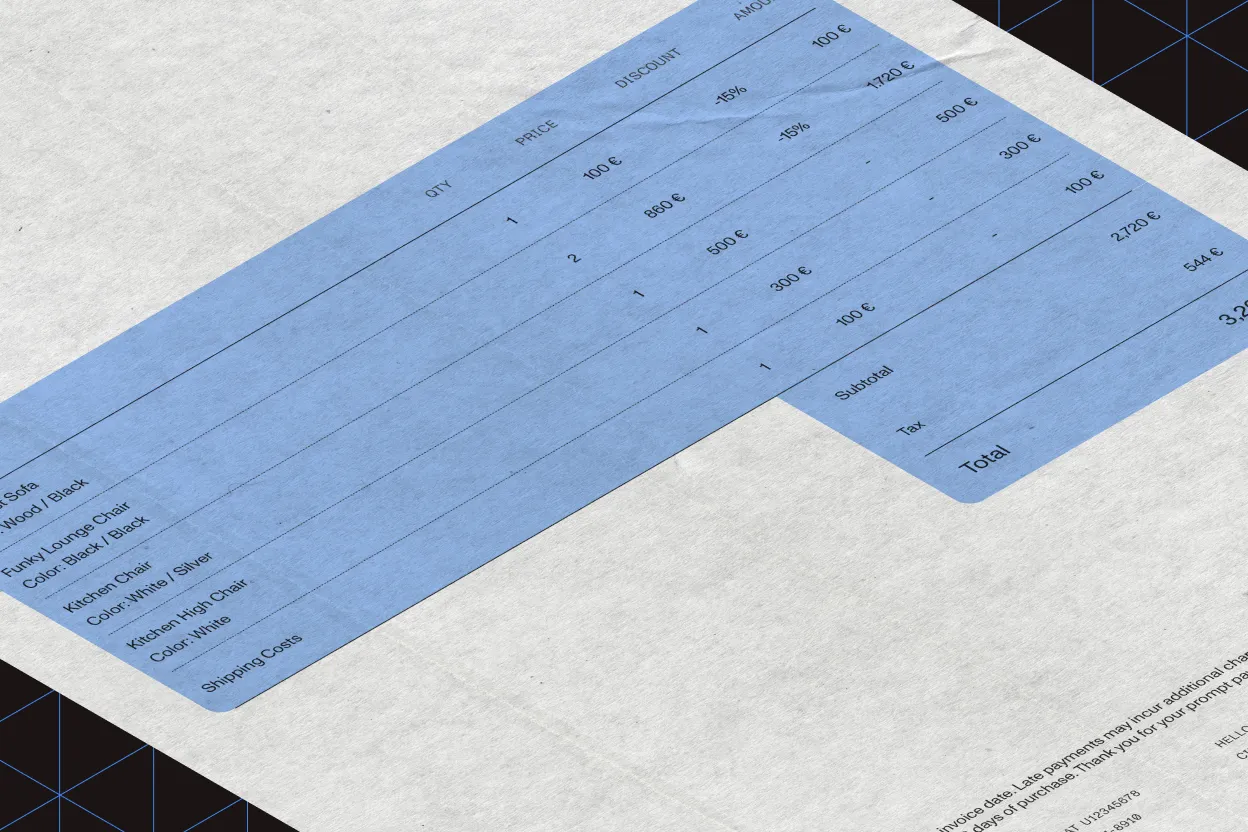
The OCR engine scans each page and identifies all tables — bordered, semi-bordered, and borderless. Works on scanned PDFs, digital PDFs, and images.
2
Table recognition
The engine parses table structure, identifying columns, rows, and individual cells. Cell content is extracted with position data preserved.
3
Table extraction
Export tables directly to Excel, JSON, or Markdown. Save each table to its own sheet, or combine multiple tables in a single file.
USE CASES
Areas of use
Invoice automation
Quality control
Form automation
Data reconciliation
GET STARTED
How to use
Download and install the GdPicture.NET package to access compiled demo applications and multi-language sample projects with full source code.
Explore demo apps
Find compiled demo applications in
\Samples\Bin\.Explore multi-language source code
Find C# and VB.NET demo apps and source code in
\Samples\WinForm\.Visit reference guide
Explore other code snippets within the online reference guide.
Example of usage
This example shows how to extract data from an invoice using the preconfigured invoice template with four additional custom fields.
static void RunExtraction(){    Configuration.RegisterGdPictureKey("GDPICTURE_KEY");    Configuration.RegisterLLMProvider(new OpenAIProvider("OPENAI_API_KEY"));    Configuration.ResourcesFolder = "resources";
    // Building the component.    ProcessorComponent component = buildComponent();
    // Process the document.    ProcessorResult result = new DocumentProcessor().Process("invoice.pdf", component);
    // Analyze results.    if (result.ExtractedFields != null)    {        foreach (var item in result.ExtractedFields)        {            Console.WriteLine($"Field name: {item.FieldName} | Field value: {item.Value} | Validation state: ({item.ValidationState})");        }    }}
static ProcessorComponent buildComponent(){    return new ProcessorComponent()    {        EnableClassifier = false, // Classification is not required, as you're using a single template.        EnableFieldsExtraction = true, // Enabling extraction of fields specified from the templates defined in the "Templates" field below.        Templates = new DocumentTemplate[] { buildInvoiceTemplate() }    };}
static DocumentTemplate buildInvoiceTemplate(){    // Template setup: getting an instance of the preconfigured invoice template.    DocumentTemplate invoiceTemplate = DocumentTemplates.Invoice;
    // Adding a custom field to the invoice template instance    // to get the order ID of a specific format.    invoiceTemplate.AddField(new()    {        Name = "Order ID",        Format = FieldDataFormat.Text,        SemanticDescription = "The order ID in the invoice",        RegexValidationMethods = new List<RegexFieldValidationMethod>        {            new RegexFieldValidationMethod("^[A-Z][0-9]{1,6}$")        }    });
    // Adding a custom field to the invoice template instance    // to calculate the payment due date based on the information in the invoice.    invoiceTemplate.AddField(new()    {        Name = "Payment due date",        Format = FieldDataFormat.Text,        SemanticDescription = "The date that the payment is due",        StandardValidationMethods = new List<StandardFieldValidationMethod>()        {            new StandardFieldValidationMethod(StandardFieldValidation.DateIntegrity)        }    });
    // Adding a custom field to the template instance    // to get the unique item count.    invoiceTemplate.AddField(new()    {        Name = "Unique item count",        Format = FieldDataFormat.Number,        SemanticDescription = "The total number of unique items",        StandardValidationMethods = new List<StandardFieldValidationMethod>()        {            new StandardFieldValidationMethod(StandardFieldValidation.NumberIntegrity)        }    });
    // Adding a custom field to the template instance    // to get the sum total of all items.    invoiceTemplate.AddField(new()    {        Name = "Total item count",        Format = FieldDataFormat.Number,        SemanticDescription = "The sum of all items, including multiplying the quantities of each item",        StandardValidationMethods = new List<StandardFieldValidationMethod>()        {            new StandardFieldValidationMethod(StandardFieldValidation.NumberIntegrity)        }    });
return invoiceTemplate;}Trusted by 3,000+ customers and Fortune 500 companies
15Y+
More than 15 years of experience developing our SDK
10K+
Trusted by more than 10,000 developers
Check out our intelligent document processing technologies
Frequently asked questions
What types of documents can the GdPicture.NET table extraction engine process?
The table extraction engine can process all types of documents, including scanned PDFs, digital PDFs, and images. It handles documents with low image quality, noise, skewed pages, and various table formats, including bordered, semi-bordered, and borderless tables.
How does the engine ensure accurate table extraction from complex documents?
The engine uses machine vision and artificial intelligence to handle challenges that break traditional OCR. It can accurately extract tables from documents with colored cells, characters touching cell borders, tables spanning page breaks, and various other complex scenarios.
Can the extracted tables be exported to other formats?
Yes. Extracted tables can be exported to multiple formats, including Excel (XLSX), JSON, and Markdown. You can extract individual tables or all tables from a document, preview each table, or combine multiple tables in a single output file.
Is the engine capable of processing multiple tables within a single document?
Yes. The engine can detect and process multiple tables within a single document. It identifies all table regions on each page, including bounding boxes for borderless tables, and can extract them individually or all at once.
What are the typical use cases for the GdPicture.NET table extraction engine?
Common use cases include invoice automation for extracting line items and totals, quality control for verifying data accuracy across documents, form automation for processing standardized documents, and data reconciliation for comparing tables across multiple documents for financial reporting.
Is GdPicture’s table extraction engine related to what Nutrient uses in its web and mobile SDKs?
Yes. GdPicture.NET is one of Nutrient’s core products, and the table extraction technology is shared across Nutrient’s desktop, web, and mobile SDKs, delivering consistent structured data capture from complex document layouts across platforms.
60-day free trial