1D Barcode Reader with GdPicture.NET

Table of contents
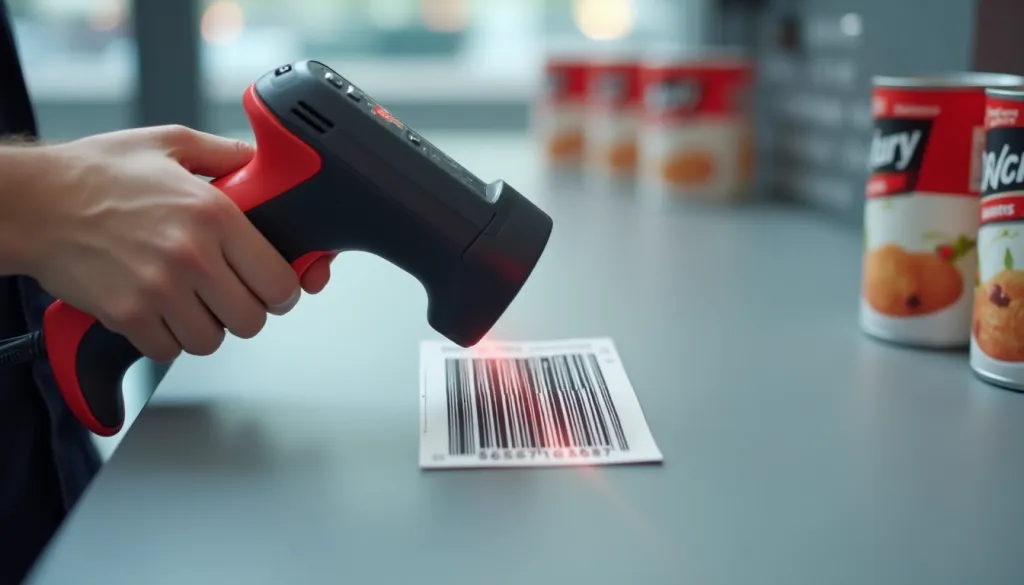
Barcode scanning has become an essential feature in various industries such as retail, healthcare, and logistics, especially the use of a 1D Barcode Reader.
Among the different types of barcodes, 1D barcodes (such as UPC, Code 39, and Code 128) are widely used for efficient product tracking and inventory management. If you're looking to implement 1D barcode scanning in your application, GdPicture.NET(opens in a new tab) is a powerful library that simplifies this process.
In this guide, we’ll walk you through the process of implementing 1D barcode scanning(opens in a new tab), a robust software development kit (SDK) that supports barcode recognition, image processing, and document viewing.
What is GdPicture.NET and How Can It Be Used as a 1D Barcode Reader?
GdPicture.NET is an advanced barcode and imaging SDK that provides a rich set of features to integrate barcode recognition, document scanning, PDF manipulation, and OCR capabilities into your .NET applications.
With GdPicture.NET’s 1D barcode reader, you can scan and recognize various barcode formats, including both 1D and 2D barcodes, quickly and efficiently.
Supported Barcode Formats
GdPicture.NET supports all standard 1D barcode formats, along with several 2D formats, including:
- Aztec Code
- Data Matrix
- MaxiCode
- Micro QR
- PDF417
- QR Code
Understanding 1D Barcode Reader
A 1D barcode uses parallel lines and spaces of varying widths to encode data in a linear format. These barcodes represent information through a systematic pattern of black bars and white spaces. They were created to enable quick data entry.
What is a 1D barcode?
A 1D barcode has two main components: the barcode symbology and the human-readable interpretation. The symbology determines how data gets encoded, and the human-readable part shows the information below the barcode. The barcode's structure has start and stop characters, with quiet zones at both ends that help scanners detect its boundaries.
How do 1D barcodes work?
A laser beam detects the pattern of bars and spaces during scanning. The laser sweeps across the barcode, and some light gets absorbed by black bars while white spaces reflect it. The barcode's elements divide into seven vertical modules, which computers interpret as individual digits.
Common uses in everyday life
1D barcodes serve purposes in industries of all types:
- Retail: Point-of-sale scanning and inventory management
- Healthcare: Patient identification and medication tracking
- Libraries: Book management and checkout systems
- Manufacturing: Product labeling and quality control
- Shipping: Package tracking and logistics
These barcodes act as a bridge between physical items and digital databases. A UPC code scan at a store connects to a pricing database, which allows quick price updates without changing the barcode itself. The barcodes can hold up to 85 alphanumeric characters(opens in a new tab), though most users limit them to 8-15 characters for optimal functionality.
How to Set Up GdPicture.NET for Barcode Scanning

1. Preparing Your Development Environment
Step 1: Install Visual Studio
- Visit the Visual Studio website(opens in a new tab) and download the appropriate edition (Community, Professional, or Enterprise).
- During installation, ensure the .NET desktop development workload is selected to enable .NET tools.
- Complete the installation and launch Visual Studio.
Step 2: Install the GdPicture.NET SDK
- Go to the GdPicture.NET official page(opens in a new tab) and download the SDK for your .NET framework version.
- Follow the installation guide to integrate the SDK into your project.
Step 3: Set Up a New C# Project
- Open Visual Studio and select Create a new project.
- Choose the Console App (.NET) template.
- Provide a project name and click Create to set up the new project.
Step 4: Add the GdPicture.NET NuGet Package
- Navigate to Tools > NuGet Package Manager > Manage NuGet Packages for Solution.
- In the NuGet Package Manager, go to the Browse tab.
- For applications targeting .NET 6.0 or newer, search for
GdPicture.API, select it, and click Install. - For .NET 4.6.2 or .NET Core 3.1, search for
GdPicture, select it, and click Install.
2. Implementing 1D Barcode Recognition
Once the GdPicture.NET SDK is installed, you’re ready to implement barcode scanning. Below is a step-by-step guide for scanning 1D barcodes using the Barcode1DReaderDoScan Method(opens in a new tab).
Step 1: Register the License Key (For Evaluation)
In GdPicture14, you don’t need a license key for evaluation purposes. However, you need to register the SDK to run in evaluation mode.
// Register without a license key for evaluation modeLicenseManager licenseManager = new LicenseManager();licenseManager.RegisterKEY(""); // Empty for evaluation modeStep 2: Define the Image Path and Check for Existence
Set the image path to the barcode image you want to scan, and check if the file exists.
// Define the image pathstring imagePath = @"C:\temp\barcode.jpg"; // Path to the barcode image
// Check if the file existsif (!File.Exists(imagePath)){    Console.WriteLine("Image file not found.");    return;}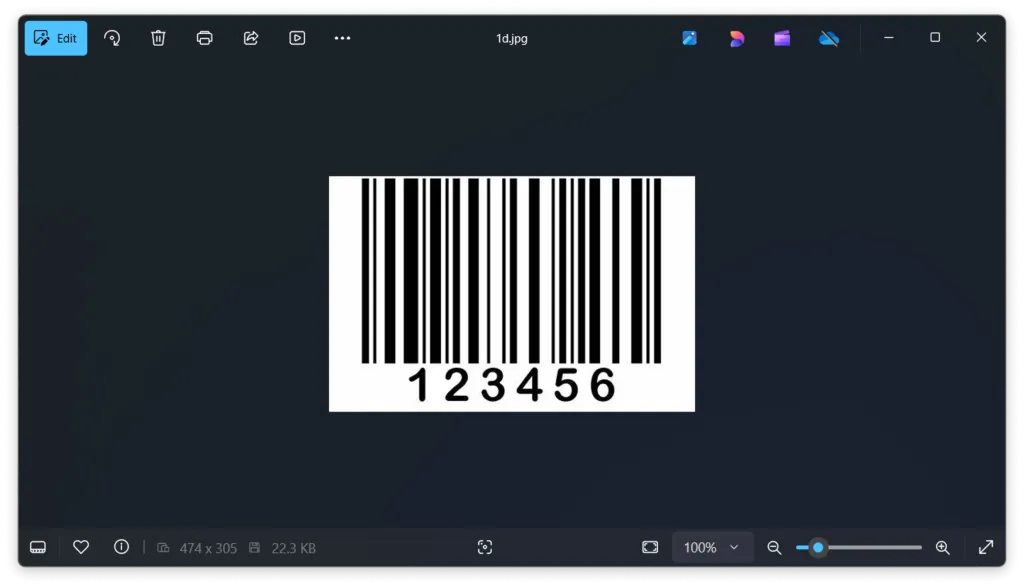
Step 3: Load the Image into GdPicture
Use the CreateGdPictureImageFromFile method to load the image into the memory.
// Create the image from the fileint imageID = gdpictureImaging.CreateGdPictureImageFromFile(imagePath);
if (imageID == 0)  // If image failed to load{    Console.WriteLine("Failed to load the image.");    return;}
Step 4: Start Barcode Scanning
Use the Barcode1DReaderDoScan method to begin scanning the image for 1D barcodes.
// Start the barcode scanning processgdpictureImaging.Barcode1DReaderDoScan(imageID);Step 5: Get the Number of Barcodes Detected
You can now check how many barcodes were detected using the Barcode1DReaderGetBarcodeCount method.
// Determine the number of barcodes detectedint barcodeCount = gdpictureImaging.Barcode1DReaderGetBarcodeCount();Step 6: Output Barcode Results
If barcodes are detected, print the barcode values to the console.
// Output barcode scanning resultif (barcodeCount > 0){ Console.WriteLine($"Number of barcodes detected: {barcodeCount}"); for (int i = 1; i <= barcodeCount; i++) { string barcodeValue = gdpictureImaging.Barcode1DReaderGetBarcodeValue(i); Console.WriteLine($"Barcode {i}: {barcodeValue}"); }}else{ Console.WriteLine("No barcodes detected.");}Step 7: Release Resources
After scanning is complete, it's essential to clean up by releasing resources used by the GdPicture image.
// Release resourcesgdpictureImaging.Barcode1DReaderClear();gdpictureImaging.ReleaseGdPictureImage(imageID);Step 8: Keep the Console Open
Finally, ensure the console window stays open so you can see the results of the scan.
// Keeps the console openConsole.ReadLine();Complete Code Example
using GdPicture14;
LicenseManager licenseManager = new LicenseManager();licenseManager.RegisterKEY("");
using GdPictureImaging gdpictureImaging = new GdPictureImaging();string imagePath = @"C:\temp\1d.jpg";
// Check if the file existsif (!File.Exists(imagePath)){    Console.WriteLine("Image file not found.");    return;}
// Create the image from the fileint imageID = gdpictureImaging.CreateGdPictureImageFromFile(imagePath);
if (imageID == 0)  // If image failed to load{    Console.WriteLine("Failed to load the image.");    return;}
// Start the barcode scanning processgdpictureImaging.Barcode1DReaderDoScan(imageID);
// Determine the number of barcodes detectedint barcodeCount = gdpictureImaging.Barcode1DReaderGetBarcodeCount();
// Output barcode scanning resultif (barcodeCount > 0){    Console.WriteLine($"Number of barcodes detected: {barcodeCount}");    for (int i = 1; i <= barcodeCount; i++)    {        string barcodeValue = gdpictureImaging.Barcode1DReaderGetBarcodeValue(i);        Console.WriteLine($"Barcode {i}: {barcodeValue}");    }}else{    Console.WriteLine("No barcodes detected.");}
// Release resourcesgdpictureImaging.Barcode1DReaderClear();gdpictureImaging.ReleaseGdPictureImage(imageID);
// Keeps the console openConsole.ReadLine();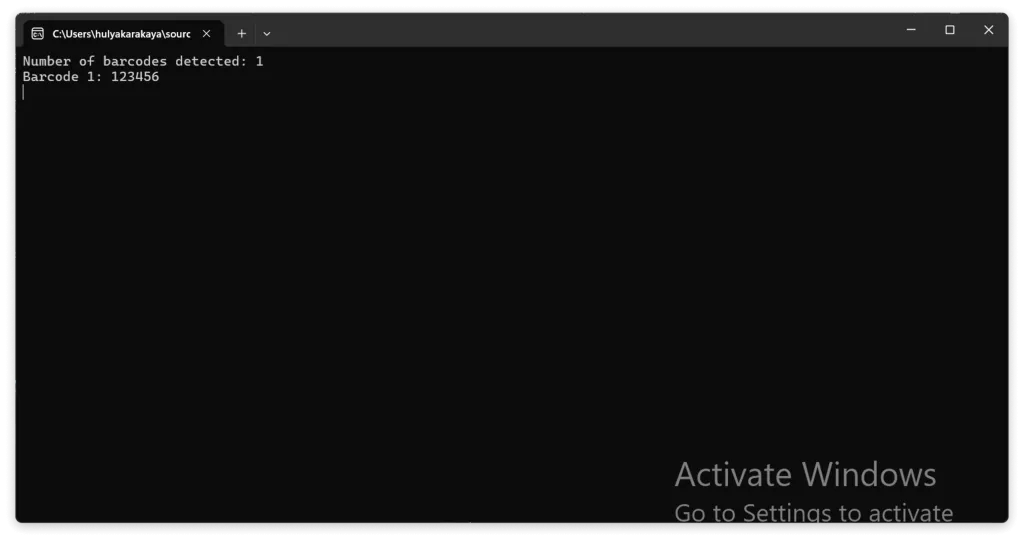
Best Practices for Barcode Scanning with GdPicture.NET
Here are a few best practices to ensure the best performance when implementing barcode scanning in your application:
- Image Quality: Ensure the barcode is clear and properly aligned in the image. Poor image quality can affect barcode recognition.
- Barcode Size: Barcodes that are too small or too large may not be detected correctly. Ensure that the barcode is within an appropriate size range.
- Error Handling: Always include error handling mechanisms to handle cases where the barcode is not detected or the image is corrupted.
Advantages of Using GdPicture.NET for Barcode Scanning
- Fast and Accurate: GdPicture.NET offers high-speed and accurate barcode recognition.
- Multiple Barcode Formats: It supports a wide range of barcode formats (1D and 2D), making it versatile for different use cases.
- Ease of Integration: The SDK is easy to integrate into existing .NET applications with minimal configuration.
- Image Processing Features: GdPicture.NET offers advanced image processing tools that enhance barcode recognition, such as rotation, skew correction, and noise reduction.
Conclusion
Implementing 1D barcode scanning using GdPicture.NET in your application is straightforward and offers a fast, reliable solution for industries that rely on barcode technology. By following the steps outlined in this guide, you can quickly integrate barcode recognition into your .NET projects and improve your system’s efficiency.
With the support for several common barcode formats, GdPicture.NET provides the flexibility needed for various applications, from retail point-of-sale systems to inventory management and logistics.
Learn More About 1D Barcode Scanning
Want to explore more about 1D barcode scanning with GdPicture.NET? Check out the official GdPicture.NET SDK(opens in a new tab) for detailed documentation, supported formats, and additional features.
Start integrating barcode recognition into your application today! 🚀
FAQ
**1. What barcode formats does GdPicture.NET support?**GdPicture.NET supports a wide range of barcode formats, including common 1D barcodes (UPC, Code 39, Code 128) and 2D barcodes (QR Code, Data Matrix, PDF417, Aztec Code, etc.).
**2. Can I use GdPicture.NET for real-time barcode scanning?**Yes, GdPicture.NET can be used for real-time barcode scanning when integrated with a live camera feed. The SDK includes image processing tools to enhance barcode detection in real-time applications.
**3. Do I need a license to evaluate GdPicture.NET?**No, you can evaluate GdPicture.NET without a license key. However, for production use, you will need to purchase a license.
**4. What are the system requirements for using GdPicture.NET?**GdPicture.NET supports .NET Framework (4.6.2+), .NET Core (3.1+), and .NET 6.0+. It works on Windows operating systems and requires Visual Studio for development.
**5. What should I do if no barcodes are detected?**If no barcodes are detected, check the following:
- Ensure the barcode image is clear and properly aligned.
- Verify that the barcode format is supported.
- Adjust image quality settings, such as brightness and contrast.
- Use image processing tools like noise reduction and skew correction.
**6. Can I scan multiple barcodes from a single image?**Yes, GdPicture.NET can detect and read multiple barcodes in a single image using the Barcode1DReaderGetBarcodeCount method.
**7. Is it possible to integrate GdPicture.NET with other .NET applications?**Yes, GdPicture.NET is designed for seamless integration with .NET applications, including Windows Forms, WPF, and ASP.NET projects.
How to Get Started
Integrating GdPicture into your applications is quick and easy. For a customized evaluation and demo, please contact our team of experts(opens in a new tab), and we will guide you properly for your use-case and requirements.
Alternatively, you can also download it for free.(opens in a new tab)