Acquire images from any TWAIN device
Integrate scanner, capture card, and digital camera support into your .NET applications. GdPicture’s TWAIN SDK handles single and batch image acquisition in both 32-bit and 64-bit modes — and then lets you edit and save documents to local storage, network drives, FTP, web servers, or databases.
What is TWAIN?
TWAIN is the industry-standard API for image acquisition, connecting scanners, drivers, and software through a unified protocol. Supported across Windows, macOS, and Linux, it’s the most widely adopted scanning standard — and GdPicture gives you full access via .NET and ActiveX APIs for WinForms, WPF, and web applications.
How scanning works
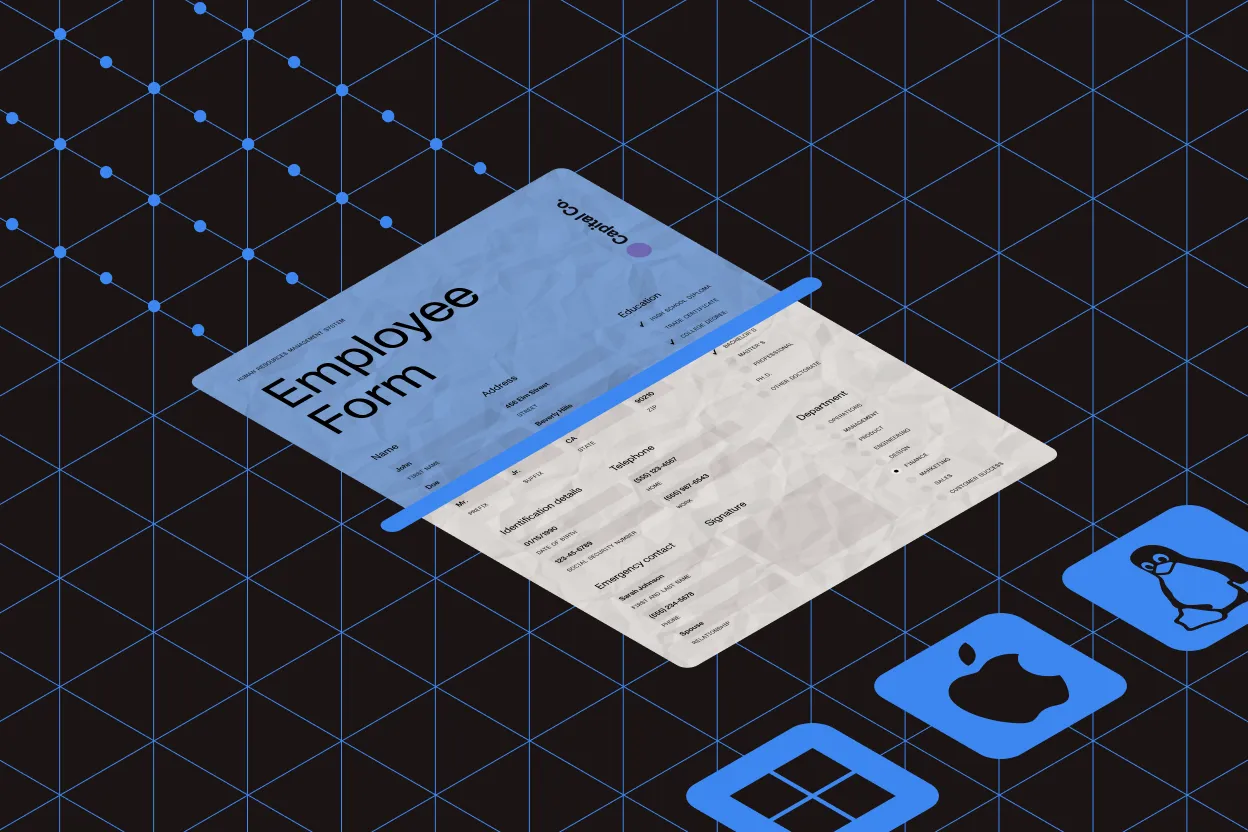
Every scan requires three components: a device, a driver, and your application. TWAIN standardizes the communication layer so your code works with any compliant scanner.
Industry standard
TWAIN is the most widely adopted scanning protocol, maintained by the TWAIN Working Group since 1992. It outpaces alternatives like WIA, ISIS, and SANE in market adoption.
Cross-platform
The protocol runs on Windows, macOS, and Linux/Unix, with standardized options for resolution, color depth, scanning regions, and feeder control.
Full API access
GdPicture exposes both low-level and high-level .NET APIs, plus ActiveX components, giving you complete control over TWAIN 2.3 capabilities in WinForms, WPF, or web apps.
Key capabilities
Scanning source control
Enumerate and select image sources programmatically. Control Automatic Document Feeders (ADF) and negotiate transfer settings per scan job.
Duplex and blank page detection
Scan both sides of a page in a single pass. Automatic blank page detection removes empty pages during acquisition, reducing file size and manual cleanup.
Image attributes
Control color depth, resolution, brightness, contrast, and dimensions for every scan. Fully compatible with Kofax VRS for advanced image cleanup.
Barcode recognition
Detect and read 1D and 2D barcodes during scanning — Code 39/128/93, EAN-8/13, PostNet, PDF417, DataMatrix, and more.
Output formats
Save scans to PDF/A, searchable PDF (OCR), encrypted PDF, multipage TIFF, JPEG, JPEG 2000, JBIG2, GIF, PNG, or EXR. Upload directly to FTP or HTTP endpoints.
Platform compatibility
Supports 32-bit and 64-bit data sources, Citrix environments, Windows Terminal Services, and multithreaded applications.
Why GdPicture TWAIN SDK
Battle-tested reliability
Built on GdPicture.NET’s document imaging engine with more than 15 years of continuous development. Handles unstable TWAIN drivers gracefully through real-time device diagnostics.
Faster time to market
Extend your scanning app with GdPicture’s broader toolkit — PDF generation, OCR, format conversion, and image processing. One consistent API across platforms means less ramp-up time.
Actively maintained
Regular updates keep pace with new devices, OS changes, and feature requests. See the version history or subscribe to the developer newsletter for the latest improvements.
TWAIN + WIA in one SDK
Compatible with both major scanning protocols. Acquire images from scanners and digital cameras in 32-bit or 64-bit environments.
get started
How to use
Download and install the GdPicture.NET package to access compiled demo applications and multi-language sample projects with full source code.
Explore demo apps
Find compiled demo applications in
\Samples\Bin\PaperScan.exe.Explore multi-language source code
Find C# and VB.NET demo apps and source code in
\Samples\WinForm\ (see TWAIN Scanning app).Visit reference guide
Explore other code snippets within the online reference guide.
Example of usage
The example gets an image from a scanner and then saves it in a searchable PDF.
using GdPictureImaging gdpictureImaging = new GdPictureImaging();using GdPicturePDF gdpicturePDF = new GdPicturePDF();// Store the handle of the active window in a variable.IntPtr WINDOW_HANDLE = IntPtr.Zero;// Select the scanner.gdpictureImaging.TwainSelectSource(WINDOW_HANDLE);gdpictureImaging.TwainOpenDefaultSource(WINDOW_HANDLE);// (Optional) Hide the scanning user interface.gdpictureImaging.TwainSetHideUI(true);// Create the destination PDF document.gdpicturePDF.NewPDF(PdfConformance.PDF);// Get the image from the scanner.int imageID = gdpictureImaging.TwainAcquireToGdPictureImage(WINDOW_HANDLE);// Add the scanned image to a new page in the destination document.gdpicturePDF.AddImageFromGdPictureImage(imageID, false, true);// Run the OCR process.gdpicturePDF.OcrPage("eng", "C:\GdPicture.NET 14\Redist\OCR", "", 300);// Save the result in a PDF document.gdpicturePDF.SaveToFile(@"C:\temp\output.pdf");// Release unnecessary resources.gdpictureImaging.ReleaseGdPictureImage(imageID);gdpictureImaging.TwainCloseSource();Using gdpictureImaging As GdPictureImaging = New GdPictureImaging()Using gdpicturePDF As GdPicturePDF = New GdPicturePDF() ' Store the handle of the active window in a variable. Dim WINDOW_HANDLE = IntPtr.Zero ' Select the scanner. gdpictureImaging.TwainSelectSource(WINDOW_HANDLE) gdpictureImaging.TwainOpenDefaultSource(WINDOW_HANDLE) ' (Optional) Hide the scanning user interface. gdpictureImaging.TwainSetHideUI(True) ' Create the destination PDF document. gdpicturePDF.NewPDF(PdfConformance.PDF) ' Get the image from the scanner. Dim imageID As Integer = gdpictureImaging.TwainAcquireToGdPictureImage(WINDOW_HANDLE) ' Add the scanned image to a new page in the destination document. gdpicturePDF.AddImageFromGdPictureImage(imageID, False, True) ' Run the OCR process. gdpicturePDF.OcrPage("eng", "C:\GdPicture.NET 14\Redist\OCR", "", 300) ' Save the result in a PDF document. gdpicturePDF.SaveToFile("C:\temp\output.pdf") ' Release unnecessary resources. gdpictureImaging.ReleaseGdPictureImage(imageID) gdpictureImaging.TwainCloseSource()End UsingEnd UsingScanning in web applications
Browser-based scanning with DocuVieware
Add TWAIN scanning to web applications using DocuVieware, our HTML5 viewer and document management toolkit.
Zero configuration or full control
Use the built-in scanning snap-in for instant integration, or customize every step with high- and low-level JavaScript APIs. Supports 32-bit and 64-bit TWAIN devices through the driver UI or programmatic control.
High-volume performance
Adaptive compression and automatic transfer mode selection optimize for available system resources. Save scans directly to PDF/A or TIFF with built-in document cleanup.
Works offline and on slow connections
Preview scanned pages with zoom, rotate, and reorder controls. Fault-tolerant transfer handles low-bandwidth and intermittent connections without losing data.
Try the web scanning demo
Loading scanning viewer...
1
Click the scan button
Start a scan from the toolbar’s snap-in icon, or open the scan dialog for more options.
2
Install the connector (first time only)
A lightweight component installs automatically to bridge your browser and TWAIN devices. It runs in the background after setup.
3
Choose your scan settings
The device driver window opens so you can select resolution, color mode, and other acquisition options.
Trusted by 3,000+ customers and Fortune 500 companies
15Y+
More than 15 years of experience developing our SDK
10K+
Trusted by more than 10,000 developers
Check out our other scanning technologies
Frequently asked questions
When should I use WIA over TWAIN SDK?
Microsoft Windows Image Acquisition (WIA) API is standardized for acquiring digital images from devices that are primarily used to capture still images and for managing these devices. WIA is a COM interface, which is very different from but overlapping with TWAIN.
Compared to TWAIN, WIA offers much better support for digital cameras and much less sophisticated support for scanners.
There are a few other parameters to keep in mind:
- Support for scanners with automatic document feeder (ADF) is much more robust with TWAIN.
- WIA uses a common dialog for all devices.
- TWAIN uses a dialog created by the device manufacturer, providing more options and custom capabilities for each device.
- TWAIN has three transfer modes (Native, Memory, File), while WIA has two (Memory, File).
- Most TWAIN sources save the settings of the previous scan, while WIA does not.
- Duplex scanning mode offers better support in TWAIN (each side can be saved with different options), with WIA using the same settings for both sides.
Refer to our WIA scanning page for more features and functionalities.
Are there other scanning protocols?
Yes. There are four main scanning protocols currently used in the document scanning industry: TWAIN, Microsoft Windows Image Acquisition (WIA), Image and Scanner Interface Specification (ISIS), and Scanner Access Now Easy (SANE). Each protocol has distinct features, adoption levels, and platform support.
TWAIN scanning protocol
- Market adoption: Very high — the most widely adopted scanning protocol in the industry.
- Developer: The TWAIN Working Group maintains and develops this open standard.
- Platform compatibility: Cross-platform support including Windows, macOS, and Linux/Unix systems.
- Digital camera support: High level of support for digital cameras.
- Licensing: LGPL (Data Source Manager only) — free to use.
- Specification: Available through the TWAIN specification.
Microsoft Windows Image Acquisition (WIA)
- Market adoption: High adoption rate, particularly in Windows environments.
- Developer: Microsoft developed and maintains this proprietary protocol.
- Platform compatibility: Windows operating systems only.
- Digital camera support: Very high — excellent support for digital cameras and imaging devices.
- Licensing: Proprietary but free to use.
- Specification: Detailed in the WIA specification documentation.
Image and Scanner Interface Specification (ISIS)
- Market adoption: Low current adoption in the market.
- Developer: Originally developed by Pixel Translations, then acquired by EMC Corporation’s Captiva Software division. Now owned by OpenText.
- Platform compatibility: Windows operating systems.
- Digital camera support: Low support for digital cameras.
- Licensing: Proprietary, with commercial licensing requirements.
- Specification: ISIS specification available through OpenText.
Scanner Access Now Easy (SANE)
- Market adoption: Low adoption compared to TWAIN and WIA.
- Developer: SANE open source project community.
- Platform compatibility: Linux/Unix systems primarily.
- Digital camera support: Very low support for digital cameras.
- Licensing: Open source — freely available.
- Specification: Documented in the SANE specification.
Which scanning protocol should you choose?
The best scanning protocol depends on your specific needs:
- For cross-platform applications — TWAIN offers the broadest compatibility
- For Windows-only solutions — WIA provides excellent native support
- For Linux/Unix environments — SANE is the standard choice
- For enterprise document management — ISIS may be required for legacy system compatibility
I want to test your library, but I don’t have a scanner.
If you don’t have a physical TWAIN scanner to test the SDK, you can download and use a virtual scanner (32- and 64-bit) here.
60-day free trial