Read Text from PDFs Using C# with GdPicture.NET OCR

Table of contents

Sometimes, text in a scanned PDF isn't selectable or searchable. This is where Optical Character Recognition (OCR) comes in.
By using OCR, you can extract text from PDF files and save it in a file for editing or further processing. In this guide, you'll learn how to use GdPicture.NET’s OCR engine to recognize text from PDFs using C#.
What Is OCR?
OCR(opens in a new tab) (Optical Character Recognition) is a technology that converts different types of documents, such as scanned paper documents, PDFs, or images captured by a digital camera, into editable and searchable data.
GdPicture.NET provides a powerful OCR engine to extract text from images and convert it into a format like TXT, or searchable PDFs.
Prerequisites
Before you start, ensure you have the following:
- Visual Studio installed with the necessary workloads for .NET development.
- GdPicture.NET SDK installed on your system.
- .NET 6.0 or newer (recommended) or .NET Framework 4.6.2/.NET Core 3.1.
Installing GdPicture.NET SDK
- Download the latest version from the official GdPicture.NET website(opens in a new tab).
- Run the installation wizard and install it at a location such as
C:\GdPicture.NET\.
Steps to Read Text from PDFs Using OCR in C#
1. Add GdPicture.API(opens in a new tab) to Your Project
Using NuGet Package Manager
- Open Visual Studio and create or open a C# .NET project.
- Go to** Project** > Manage NuGet Packages.
- In the Package source dropdown, select
nuget.org. - Search for
GdPicture.APIand install it (for .NET 6.0+ projects). - For .NET 4.6.2 or .NET Core 3.1, install
GdPicture.
2. Import GdPicture.NET to Your Code
At the beginning of your C# files, add:
using GdPicture14;3. Load the PDF File
To begin, create a GdPicturePDF object and load the PDF file that contains the text you want to recognize.
using GdPicturePDF gdpicturePDF = new GdPicturePDF();gdpicturePDF.LoadFromFile(@"C:\temp\source.pdf");4. Configure OCR Settings
- Create a GdPictureOCR object:
using GdPictureOCR gdpictureOCR = new GdPictureOCR();- Set the resource folder: This folder contains the OCR language models.
gdpictureOCR.ResourceFolder = @"C:\GdPicture.NET 14\Redist\OCR";- Choose a language: Specify the language(s) for text recognition.
gdpictureOCR.AddLanguage(OCRLanguage.English);5. Extract Text Using OCR
- Determine the number of pages in the document:
int pageCount = gdpicturePDF.GetPageCount();- Loop through the pages and process each page:
Render the page to an image.
Run the OCR process.
Retrieve the extracted text.
Release used resources.
string outputText = "";
for (int page = 1; page <= pageCount; page++){    gdpicturePDF.SelectPage(page);    int imageId = gdpicturePDF.RenderPageToGdPictureImageEx(300, true);    gdpictureOCR.SetImage(imageId);    string resultId = gdpictureOCR.RunOCR();    outputText += gdpictureOCR.GetOCRResultText(resultId);    GdPictureDocumentUtilities.DisposeImage(imageId);    gdpictureOCR.ReleaseOCRResult(resultId);}
6. Save Extracted Text to a File
- Write the extracted text to a
.txt file
System.IO.StreamWriter outputFile = new System.IO.StreamWriter(@"C:\temp\output.docx"); outputFile.WriteLine(outputText); outputFile.Close();- Release unnecessary resources:
gdpicturePDF.CloseDocument();Full C# Code Example
using GdPicture14;
LicenseManager licenseManager = new LicenseManager();licenseManager.RegisterKEY("");
using GdPicturePDF gdpicturePDF = new GdPicturePDF();using GdPictureOCR gdpictureOCR = new GdPictureOCR();
// Select the source document.gdpicturePDF.LoadFromFile(@"C:\temp\output.pdf");// Configure the OCR process.gdpictureOCR.ResourceFolder = @"C:\GdPicture.NET 14\Redist\OCR";gdpictureOCR.AddLanguage(OCRLanguage.English);// Create an empty string where you'll save the output.string outputText = "";// Determine the number of pages and loop through them.int pageCount = gdpicturePDF.GetPageCount();for (int page = 1; page <= pageCount; page++){    gdpicturePDF.SelectPage(page);    // Render the page to a 300 DPI image.    int imageId = gdpicturePDF.RenderPageToGdPictureImageEx(300, true);    // Pass the image to the `GdPictureOCR` object.    gdpictureOCR.SetImage(imageId);    // Run the OCR process.    string resultId = gdpictureOCR.RunOCR();    // Get the result of the OCR process as text.    outputText += gdpictureOCR.GetOCRResultText(resultId);    // Release the image and the OCR result.    GdPictureDocumentUtilities.DisposeImage(imageId);    gdpictureOCR.ReleaseOCRResult(resultId);}// Save the output in a new text file.System.IO.StreamWriter outputFile = new System.IO.StreamWriter(@"C:\temp\output.txt");outputFile.WriteLine(outputText);outputFile.Close();// Release unnecessary resources.gdpicturePDF.CloseDocument();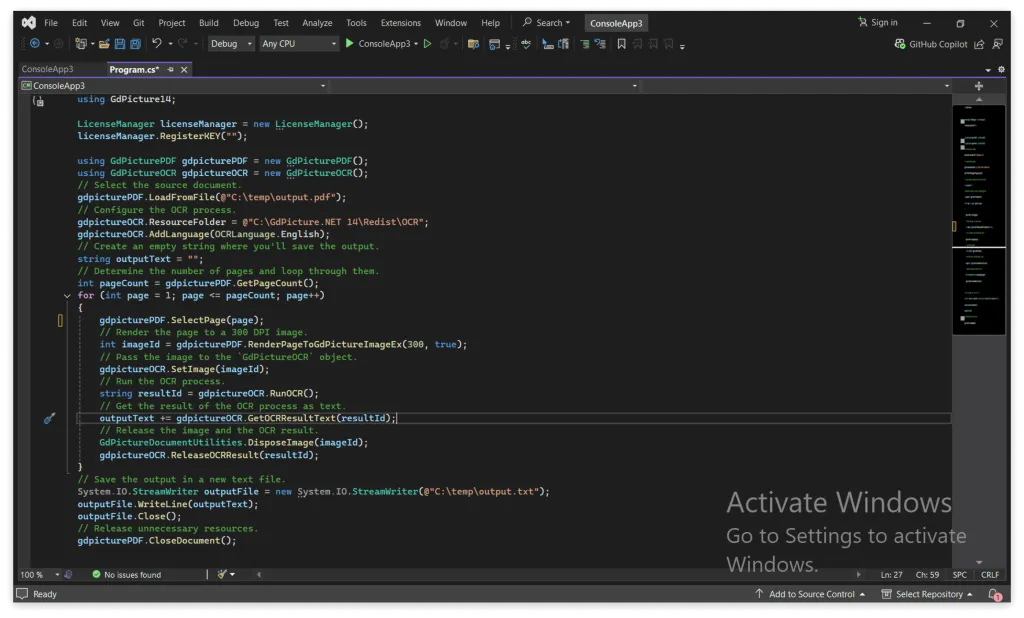
Conclusion
By following this guide, you can successfully extract text from PDF files using OCR in C# and save it as a text file. This process makes scanned documents and images editable and searchable, improving document accessibility and workflow automation.
Looking to integrate advanced OCR solutions into your application? Contact our sales team(opens in a new tab) to explore enterprise-grade features and customized solutions!
How to Get Started
Integrating GdPicture into your applications is quick and easy. For a customized evaluation and demo, please contact our team of experts(opens in a new tab), and we will guide you properly for your use-case and requirements.
Alternatively, you can also download it for free.(opens in a new tab)